
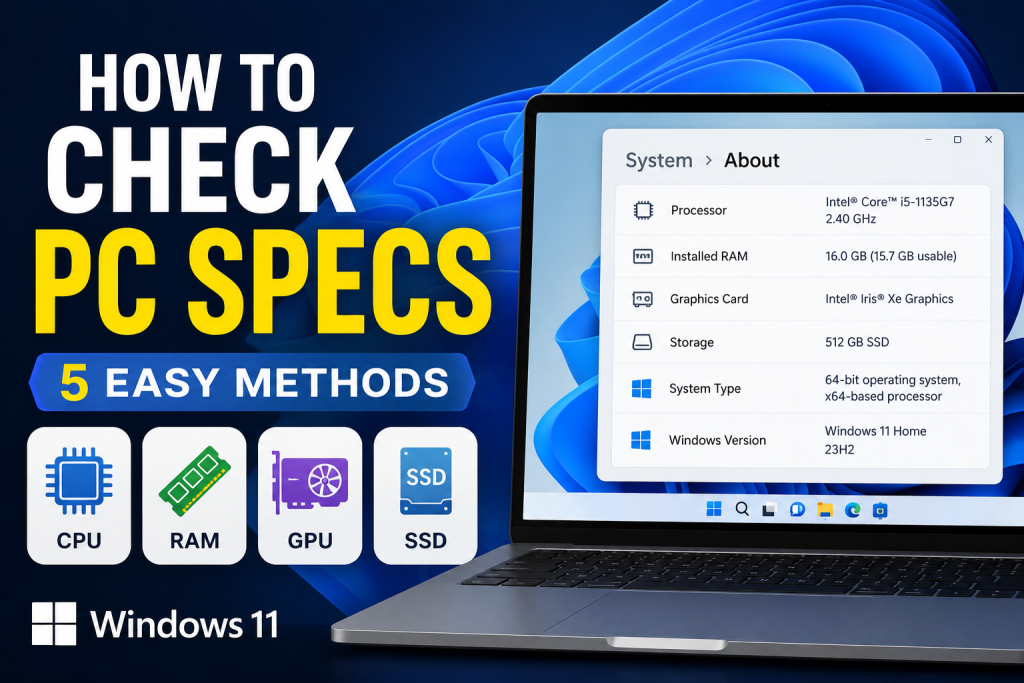
Knowing your computer’s hardware specifications is important for troubleshooting problems, installing software, upgrading components, or checking whether your PC can run a specific game or application.
If you’re wondering how to check PC specifications in Windows 11, the good news is that Microsoft includes several built-in tools that make the process quick and easy.
In this guide, you’ll learn five simple methods to view your processor, RAM, graphics card, storage, Windows version, and other important system details.
Why You Should Check Your PC Specifications
There are many situations where checking your computer specifications can be helpful.
For example, you may need to:
- Install new software
- Upgrade your RAM or storage
- Check if your PC supports Windows 11
- Troubleshoot performance issues
- Verify hardware before purchasing upgrades
- Check graphics card information for gaming
If you’re planning to reinstall your operating system, you may also want to read our guide on How to Install Windows 11 Step by Step:
https://how-to.cc/how-to-install-windows-11-step-by-step/
Similarly, if your computer is running slowly, our article on Best Way to Speed Up Laptop can help improve performance:
https://how-to.cc/best-way-to-speed-up-laptop/
Method 1: Check PC Specifications Using Windows Settings
The easiest method is through the Windows Settings app.
Steps
- Press Windows + I to open Settings.
- Click System from the left menu.
- Scroll down and select About.
You will see:
- Processor (CPU)
- Installed RAM
- Device name
- System type
- Windows edition
- Windows version
For most users, this provides enough information without needing advanced tools.
Pros
- Fast and simple
- Built into Windows 11
- Beginner-friendly
Method 2: Use System Information
System Information provides much more detailed hardware and software information.
Steps
- Open the Start Menu.
- Type System Information.
- Open the app.
The System Summary section displays:
- Processor details
- Installed memory
- BIOS version
- Motherboard information
- System manufacturer
- System model
- Secure Boot status
Why Use System Information?
This tool is particularly useful when troubleshooting hardware-related issues or verifying system compatibility.
Method 3: Check Specifications Using Task Manager
Task Manager provides both hardware details and real-time performance statistics.
Steps
- Press Ctrl + Shift + Esc.
- Click the Performance tab.
You can view information about:
CPU
- Model
- Speed
- Number of cores
- Current usage
Memory
- Total RAM
- Available RAM
- Memory speed
Storage
- SSD or HDD type
- Capacity
- Active usage
Graphics Card
- GPU model
- GPU memory
- Usage statistics
This method is excellent if you’re trying to identify performance bottlenecks.
If your system frequently freezes or becomes slow, you may also find our guide on How to Reset Windows 11 Without Losing Files useful:
https://how-to.cc/how-to-reset-windows-11-without-losing-files/
Method 4: Use DirectX Diagnostic Tool (DxDiag)
The DirectX Diagnostic Tool is particularly useful for checking graphics-related specifications.
Steps
- Press Windows + R.
- Type dxdiag.
- Press Enter.
You’ll see information such as:
- Processor
- Installed memory
- DirectX version
- Operating system version
Select the Display tab to view:
- Graphics card model
- Video memory
- Driver information
Best For
- Gamers
- Graphic designers
- Troubleshooting display problems
Method 5: Check Specifications Using Command Prompt
Advanced users can generate a complete system report using Command Prompt.
Steps
- Open the Start Menu.
- Search for Command Prompt.
- Select Run as Administrator.
- Type:
systeminfo
- Press Enter.
Windows will display detailed information including:
- Windows version
- Processor information
- Installed RAM
- BIOS version
- Manufacturer details
- Network information
Benefits
This method provides one of the most comprehensive hardware reports available without installing third-party software.
How to Check RAM in Windows 11
To quickly check your installed RAM:
- Open Settings.
- Navigate to System > About.
- Look for Installed RAM.
You can also view RAM usage in Task Manager under the Performance tab.
How to Check Your Graphics Card
To view your graphics card details:
Using Task Manager
- Open Task Manager.
- Select Performance.
- Click GPU.
Using DxDiag
- Open Run.
- Type dxdiag.
- Open the Display tab.
This will show your graphics card manufacturer and model.
How to Check Storage Capacity
To see how much storage your PC has:
- Open Settings.
- Select System > Storage.
Windows will display:
- Total storage space
- Used storage
- Free space
- Storage categories
Keeping an eye on storage is important because a nearly full drive can significantly reduce performance.
Frequently Asked Questions
How do I find my PC specifications quickly?
Open Settings > System > About. This is the fastest method for most users.
How do I check my processor in Windows 11?
Go to Settings > System > About to see your CPU model and specifications.
How do I check my graphics card?
Use either Task Manager or the DirectX Diagnostic Tool (dxdiag).
Which method provides the most information?
System Information and Command Prompt provide the most detailed reports.
Final Thoughts
Learning how to check PC specifications in Windows 11 is useful for every computer user. Whether you’re upgrading hardware, troubleshooting problems, installing software, or checking compatibility requirements, Windows provides several easy ways to view your system details.
For beginners, the Settings app is usually enough. However, advanced users may prefer System Information, Task Manager, DxDiag, or Command Prompt for more detailed insights.
Taking a few minutes to learn your PC’s specifications can help you make better decisions about upgrades, maintenance, and troubleshooting in the future.
External Links (Official Sources Only)
Place these where relevant:
- Microsoft Windows 11 Specifications:
https://www.microsoft.com/windows/windows-11-specifications - Microsoft System Information Tool:
https://support.microsoft.com/windows - Microsoft DirectX Diagnostic Tool Documentation:
https://support.microsoft.com