
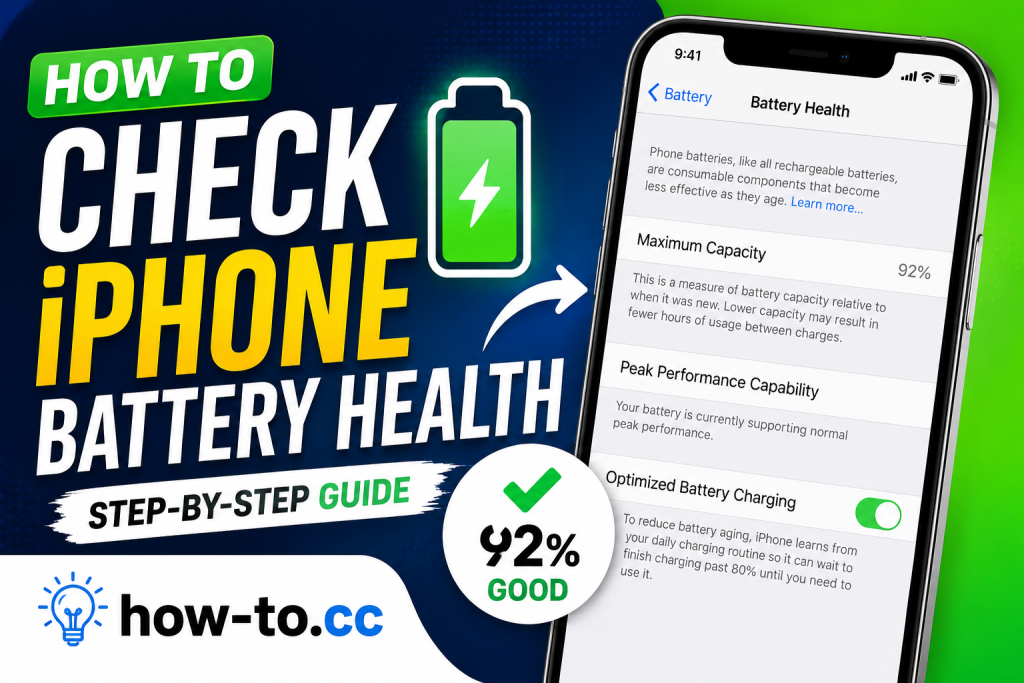
If you’ve noticed that your iPhone battery drains quickly, shuts down unexpectedly, or doesn’t last as long as it used to, it’s time to learn how to check iPhone battery health. Apple includes a built-in Battery Health feature that allows users to monitor battery condition and determine whether a battery replacement may be needed.
Understanding your battery health can help improve performance, extend battery life, and prevent unexpected issues.
For more iPhone tutorials and technology guides, visit: how-to.cc/blogs/
What Is iPhone Battery Health?
Battery Health is a feature introduced by Apple that shows the condition of your iPhone’s battery.
As lithium-ion batteries age, their ability to hold a charge gradually decreases. Battery Health helps you monitor this process by displaying your battery’s maximum capacity and performance capability.
Apple provides additional information about batteries on its official website:
https://www.apple.com/batteries
Why Is iPhone Battery Health Important?
Knowing your battery health helps you:
- Monitor battery wear
- Improve battery performance
- Identify battery-related issues
- Decide when a replacement is needed
- Extend overall battery lifespan
A healthy battery ensures better performance and longer usage between charges.
How to Check iPhone Battery Health
Checking battery health is simple and only takes a few seconds.
Step 1: Open Settings
Unlock your iPhone and open:
Settings
Step 2: Tap Battery
Scroll down and tap:
Battery
Step 3: Open Battery Health & Charging
Select:
Battery Health & Charging
Here you’ll see important battery information.
Understanding Maximum Capacity
The most important number is:
Maximum Capacity
This percentage shows how much charge your battery can hold compared to when it was new.
For example:
- 100% = Brand new battery
- 95% = Excellent condition
- 90% = Good condition
- 85% = Noticeable battery aging
- Below 80% = Battery replacement may be recommended
Apple generally recommends considering a replacement when capacity falls below 80%.
You can learn more through Apple’s official support website:
What Is Peak Performance Capability?
Below Maximum Capacity, you’ll see:
Peak Performance Capability
This section tells you whether your battery can deliver normal performance.
You may see messages such as:
Normal Performance
Your battery is functioning normally.
Performance Management Applied
Your iPhone has reduced performance to prevent unexpected shutdowns.
Battery Service Recommended
Your battery may require replacement.
These messages help identify battery-related problems.
How Battery Health Affects Your iPhone
Poor battery health can cause:
- Faster battery drain
- Reduced screen-on time
- Unexpected shutdowns
- Slower performance
- Charging issues
As batteries age, these symptoms become more noticeable.
When Should You Replace Your iPhone Battery?
Consider replacing the battery if:
- Maximum Capacity falls below 80%
- Battery drains extremely fast
- Device shuts down unexpectedly
- Performance becomes noticeably slower
Apple offers battery service options through:
https://support.apple.com/iphone/repair
How to Improve iPhone Battery Health
If your battery health is still good, you can help preserve it.
Avoid Extreme Temperatures
Keep your iPhone away from excessive heat.
Heat is one of the biggest factors affecting battery degradation.
Enable Optimized Battery Charging
To enable:
Settings → Battery → Battery Health & Charging
Turn on:
Optimized Battery Charging
This feature reduces battery wear over time.
Avoid Keeping the Battery at 0%
Frequent deep discharges can increase battery aging.
Try to charge before the battery becomes completely empty.
Use Genuine Chargers
Use Apple-certified charging accessories whenever possible.
Poor-quality chargers can negatively affect battery performance.
Keep iOS Updated
Apple often improves battery optimization through software updates.
Install updates regularly.
Other iPhone Maintenance Tips
Battery health isn’t the only factor affecting performance.
You may also benefit from:
Freeing Up Storage Space
A nearly full iPhone can feel slower.
Read our guide:
Backing Up Important Photos
Protect your memories by regularly transferring photos to your computer.
Read:
Common Questions About iPhone Battery Health
Is 85% Battery Health Good?
Yes. An iPhone with 85% battery health is still usable and generally performs well.
Is 80% Battery Health Bad?
Not necessarily. However, Apple considers 80% the point where a battery replacement may be beneficial.
Can Battery Health Return to 100%?
No. Battery degradation is permanent.
The only way to return to 100% capacity is by installing a new battery.
Does Fast Charging Damage Battery Health?
Occasional fast charging is generally safe, but excessive heat generated during charging can accelerate battery wear.
How Often Should I Check Battery Health?
Checking once every month is usually sufficient.
Related Guides
Browse more tutorials:
Visit our homepage:
Need assistance?
Conclusion
Learning how to check iPhone battery health is one of the easiest ways to monitor your device’s condition and ensure optimal performance. By checking Maximum Capacity, understanding Peak Performance Capability, and following good charging habits, you can extend battery life and keep your iPhone running smoothly. If your battery health falls below 80%, consider a battery replacement to restore performance and reliability.