
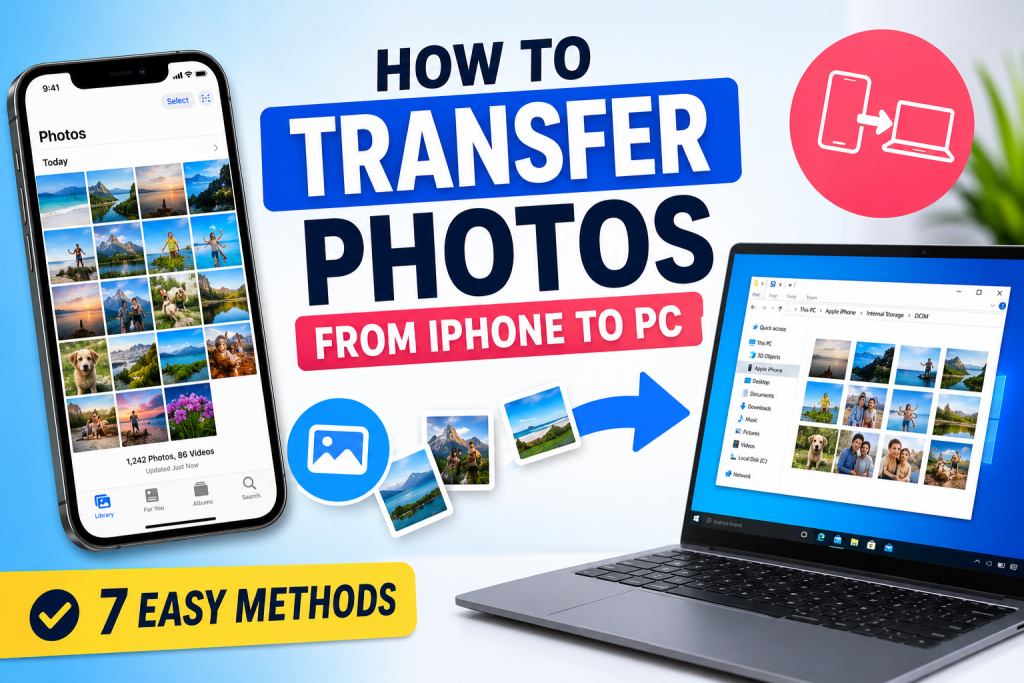
Learning how to transfer photos from iPhone to PC is one of the best ways to protect your memories, free up storage space, and keep your photo library organized. Whether you have a few hundred photos or thousands of pictures and videos, transferring them to a Windows computer is simple when you know the right methods.
Many iPhone users eventually run into storage issues because photos and videos take up a large amount of space. If you’re also struggling with storage problems, check out our guide on How to Free Up Storage Space on iPhone:
https://how-to.cc/how-to-free-up-storage-space-on-iphone/
In this guide, you’ll learn multiple ways to transfer photos from iPhone to PC safely and efficiently.
Why Transfer Photos from iPhone to PC?
There are several reasons to transfer photos from your iPhone to a Windows PC:
- Create backups of important memories
- Free up storage space on your iPhone
- Edit photos on a larger screen
- Organize photos into folders
- Protect photos from accidental loss
Regular backups are always recommended, especially if you capture a lot of photos and videos.
Method 1: How to Transfer Photos from iPhone to PC Using a USB Cable
Using a USB cable is the fastest and most reliable method.
Step 1: Connect Your iPhone
Use a Lightning cable to connect your iPhone to your PC.
Step 2: Unlock Your iPhone
After connecting the device:
- Unlock your iPhone
- Tap Trust This Computer
Without this permission, Windows cannot access your photos.
Step 3: Open File Explorer
On your Windows PC:
- Open File Explorer
- Click Apple iPhone
- Open Internal Storage
- Open the DCIM folder
This folder contains your photos and videos.
Step 4: Copy Your Photos
Select the images you want and copy them to a folder on your PC.
This method does not require any additional software.
Method 2: How to Transfer Photos from iPhone to PC Using Windows Photos App
Windows includes a built-in Photos application.
Steps
- Connect your iPhone
- Open the Photos app
- Click Import
- Select From a USB Device
- Choose the photos you want
- Click Import
The Photos app automatically organizes imported images.
If you’re using Windows 11, you may also like our guide:
How to Install Windows 11 Step by Step
https://how-to.cc/how-to-install-windows-11-step-by-step/
Method 3: How to Transfer Photos from iPhone to PC Using File Explorer
File Explorer provides direct access to your photos.
Advantages include:
- No extra software required
- Fast transfers
- Easy drag-and-drop functionality
- Simple folder management
Simply copy files from the DCIM folder to your preferred location on the computer.
Method 4: How to Transfer Photos from iPhone to PC Using iCloud
Apple’s iCloud service automatically syncs photos between devices.
Enable iCloud Photos
- Open Settings
- Tap your Apple ID
- Select iCloud
- Tap Photos
- Enable iCloud Photos
Once synced, you can access your photos through:
For additional help with iCloud, visit Apple’s official support website:
Method 5: How to Transfer Photos from iPhone to PC Using OneDrive
Microsoft OneDrive is another excellent option.
Steps
- Install OneDrive on your iPhone
- Sign in to your Microsoft account
- Enable Camera Upload
- Allow your photos to sync automatically
After syncing, you can access your photos from your PC.
Learn more through Microsoft Support:
Method 6: How to Transfer Photos from iPhone to PC Using Google Drive
Google Drive offers cloud-based photo transfers.
Steps
- Install Google Drive on iPhone
- Upload your photos
- Sign in on your PC
- Download your files
This method is useful when a USB cable is unavailable.
Method 7: How to Transfer Photos from iPhone to PC Wirelessly
Wireless transfers are convenient and require no cables.
Popular options include:
- iCloud
- OneDrive
- Google Drive
- Cloud storage services
Although wireless transfers are slower for large photo libraries, they work well for everyday use.
Common Problems When Transferring Photos from iPhone to PC
iPhone Not Showing in File Explorer
Try:
- Unlocking the iPhone
- Reconnecting the cable
- Restarting both devices
- Tapping Trust This Computer
Photos Won’t Import
Possible causes:
- Outdated Windows version
- Outdated iOS version
- Damaged cable
- Storage issues
Transfer Is Slow
Large videos and photo libraries can increase transfer times.
Using a quality USB cable typically provides the fastest speeds.
Tips for Managing Photos After Transfer
Create Folders
Organize images by:
- Year
- Month
- Events
- Family
- Travel
Back Up Your Photos
Store copies in multiple locations whenever possible.
Free Up iPhone Storage
After confirming that your photos are safely stored on your PC, you can delete them from your iPhone.
For detailed instructions, read:
How to Free Up Storage Space on iPhone
https://how-to.cc/how-to-free-up-storage-space-on-iphone/
Related Guides
Browse more tutorials:
Visit our homepage:
Need help? Contact us:
Frequently Asked Questions
Can I transfer photos from iPhone to PC without iTunes?
Yes. You can use File Explorer, Windows Photos, iCloud, OneDrive, or Google Drive.
Which method is fastest?
A USB cable combined with File Explorer is usually the fastest option.
Is iCloud free?
Apple provides limited free iCloud storage. Additional storage plans are available.
Why can’t my PC detect my iPhone?
This is usually caused by a locked device, permission issues, or a faulty cable.
Conclusion
Knowing how to transfer photos from iPhone to PC is essential for protecting your memories, freeing storage space, and keeping your files organized. Whether you use a USB cable, Windows Photos, iCloud, OneDrive, or Google Drive, each method provides a reliable way to move your photos safely. Regular backups ensure that your important memories remain secure while keeping your iPhone storage available for new photos and videos.