
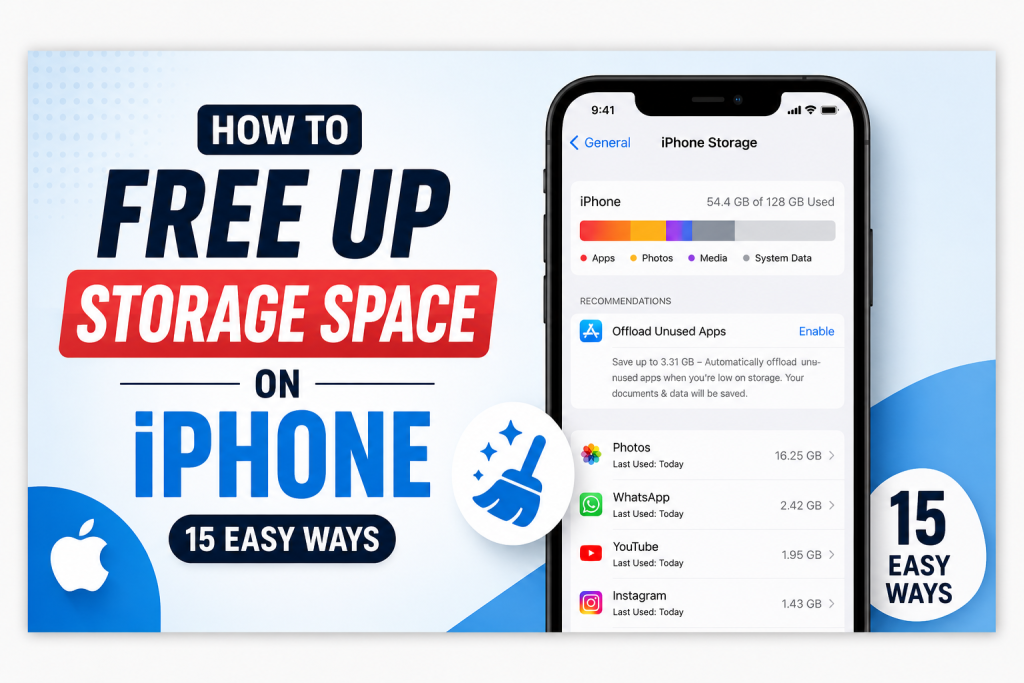
Running out of storage is one of the most common problems iPhone users face today. If you’ve received the “iPhone Storage Full” notification, you’re probably wondering how to free up storage space on iPhone quickly and safely. Fortunately, there are many ways to reclaim storage without losing important data. By following the methods in this guide, you can free up storage space on iPhone, improve performance, and make room for new apps, photos, and updates.
For more technology tutorials and troubleshooting guides, visit How-To.cc and explore our latest articles.
Why Does iPhone Storage Fill Up?
Your iPhone stores much more than just apps and photos. Over time, storage becomes filled with videos, downloaded files, app data, message attachments, browser cache, and system files.
Common causes of low storage include:
- Thousands of photos and videos
- Large applications
- Downloaded movies and TV shows
- WhatsApp media
- Safari cache
- Old messages and attachments
- Offline music downloads
Understanding what uses your storage is the first step toward solving the problem.
Check What’s Using Your Storage
Before deleting anything, check your storage usage.
Open:
Settings → General → iPhone Storage
Here you’ll see a detailed breakdown of which apps and files consume the most space.
If you’re interested in other technology guides, you can also browse the latest tutorials on the How-To.cc Blog.
1. Delete Unused Apps
Many users install applications and never use them again.
Removing unused apps can instantly free up hundreds of megabytes or even several gigabytes of storage.
Review your installed applications and remove anything you no longer need.
2. Enable Offload Unused Apps
Apple provides a helpful feature called Offload Unused Apps.
This removes applications while keeping your personal data intact.
To enable it:
- Open Settings
- Tap App Store
- Enable Offload Unused Apps
This feature automatically helps free storage space on iPhone over time.
3. Remove Large Videos
Videos often consume more storage than any other file type.
High-resolution 4K videos can occupy several gigabytes.
Review your videos regularly and delete clips you no longer need.
4. Optimize iPhone Photos
Photos can consume significant storage space.
Apple allows users to optimize storage by keeping smaller versions of photos on the device while storing full-resolution versions in iCloud.
To enable this feature:
- Open Settings
- Tap Photos
- Select Optimize iPhone Storage
You can learn more about iCloud Photos through Apple’s official support resources.
5. Delete Duplicate Photos
Duplicate photos accumulate over time and waste valuable storage.
Recent versions of iOS include built-in duplicate photo detection.
Review duplicate images and remove unnecessary copies.
6. Clear Safari Data
Safari stores browsing history, cookies, and cached files.
These files can gradually consume storage.
To clear Safari data:
- Open Settings
- Tap Safari
- Select Clear History and Website Data
This can free storage and improve browser performance.
7. Delete Old Messages
Messages containing photos, videos, and attachments can occupy large amounts of storage.
Delete old conversations that are no longer needed.
Pay particular attention to message threads containing media files.
8. Configure Automatic Message Deletion
Instead of keeping messages forever, configure iPhone to remove older conversations automatically.
Open:
Settings → Messages → Keep Messages
Choose:
- 30 Days
- 1 Year
This helps prevent unnecessary storage buildup.
9. Remove Downloaded Music
Offline music files consume storage quickly.
Review downloaded albums, playlists, and podcasts.
Delete content you no longer listen to.
10. Delete Downloaded Movies and Shows
Streaming services often store offline content.
Check applications such as:
- Netflix
- Disney+
- Prime Video
- YouTube Premium
Removing watched content can free significant storage.
11. Manage WhatsApp Storage
WhatsApp is one of the largest storage consumers for many users.
Photos, videos, voice notes, and documents accumulate rapidly.
To review WhatsApp storage:
- Open WhatsApp
- Go to Settings
- Tap Storage and Data
- Select Manage Storage
Delete large or unnecessary files.
12. Remove Large Attachments
Email attachments and downloaded files can quietly consume storage.
Review attachments stored in:
- Gmail
- Outlook
Delete files you no longer need.
13. Clean the Files App
The Files app often contains forgotten downloads.
Review:
- PDFs
- ZIP files
- Documents
- Downloads
Removing unnecessary files can reclaim valuable storage space.
14. Restart Your iPhone Regularly
Although restarting won’t free large amounts of storage, it helps clear temporary processes and improve overall performance.
Many users overlook this simple maintenance step.
15. Update iOS
Apple regularly improves storage management and performance through software updates.
To update:
Settings → General → Software Update
Keeping your iPhone updated helps maintain optimal performance and storage efficiency.
You can find official update instructions through Apple Support.
Additional Ways to Free Up Storage Space on iPhone
Use Cloud Storage
Cloud services can reduce local storage usage.
Popular options include:
- iCloud
- Google Drive
- Microsoft OneDrive
- Dropbox
Transfer Photos to a Computer
Moving photos and videos to a Windows PC or Mac can free a large amount of storage.
If you use Windows, you may also find our guide on How to Install Windows 11 Step by Step useful.
Remove Old Downloads
Review downloaded content regularly.
Many files remain stored long after they are needed.
Common Mistakes That Fill iPhone Storage
Many users accidentally waste storage by:
- Keeping duplicate photos
- Saving unnecessary videos
- Ignoring app storage usage
- Downloading content and forgetting about it
- Never clearing browser data
Avoiding these habits helps maintain available storage.
Frequently Asked Questions
Why is my iPhone storage still full after deleting files?
Some storage may remain occupied by system data, cached files, and recently deleted items. Empty the Recently Deleted folder to reclaim storage immediately.
Is Offload Unused Apps safe?
Yes. It removes the app while preserving your personal data.
Does deleting photos immediately free storage?
Photos remain in the Recently Deleted folder for 30 days unless manually removed.
How much free storage should I keep?
Keeping at least 10–20% of your storage free helps maintain good performance.
Conclusion
Learning how to free up storage space on iPhone is essential for maintaining performance and avoiding frustrating storage warnings. By deleting unused apps, managing photos, clearing downloads, removing duplicate files, and optimizing storage settings, you can reclaim valuable space and keep your device running smoothly. Regular maintenance ensures that your iPhone remains fast, responsive, and ready for everyday use.
For more helpful guides, visit How-To.cc, browse our latest blog articles, or contact us if you need assistance.
For Install Letest Ios on Your Device – Apple
Get Our Letest Articals About – Windows Android And Ios