Few things are more frustrating for a system administrator or a developer than pressing the “Tab” key in the terminal and getting absolutely no response. Command line completion, commonly known as tab autocomplete, is a fundamental feature of modern command-line interfaces. It saves time, prevents frustrating typos, and eliminates the need to memorize long, complex directory paths or software flags.
When you suddenly lose this functionality, your workflow grinds to an agonizing halt. You are left manually typing out endless file paths and server commands. If you are struggling to fix bash command line completion, you are experiencing a very common configuration issue. This problem typically arises after migrating to a new server, creating a new user account, upgrading your operating system, or accidentally wiping your environment configuration files.
This comprehensive guide will show you exactly how to restore your terminal’s autocomplete capabilities. We will cover the core installation packages, the necessary environment variables, and the specific configuration files required for both Linux distributions and Apple’s macOS.
Quick Facts
- Time Required: 5 to 10 Minutes
- Difficulty Level: Beginner to Intermediate
- Tools Needed: Terminal access, basic text editor (Nano or Vim), sudo/administrator privileges.
The Anatomy of Bash Completion
Before typing commands to fix the issue, it is highly beneficial to understand how your terminal actually handles auto-completion. Bash (Bourne Again SHell) has a built-in function called complete. By default, basic Bash will only autocomplete simple file names and directory paths found in your immediate working directory.
However, modern developers expect the terminal to autocomplete complex software flags, git branches, docker container names, and system service states. To achieve this advanced, context-aware autocomplete, your system relies on an external software package literally called bash-completion.
This package is a massive collection of shell scripts. When you type a command like git and hit Tab, the system looks into a specific directory (usually /etc/bash_completion.d/ or /usr/share/bash-completion/) to find the script associated with git. That script tells the terminal exactly what options are valid for that specific command at that exact moment. If that package is missing, or if your terminal doesn’t know where to look for those scripts, the Tab key stops functioning entirely.
Step 1: Verify Your Current Active Shell
The very first troubleshooting step is confirming that you are actually running the Bash shell. Modern operating systems frequently change their default environments. For example, starting with macOS Catalina, Apple completely abandoned Bash as the default shell and replaced it with Zsh (Z shell). If you are trying to apply Bash fixes to a Zsh environment, nothing will work.
Open your terminal application and type the following diagnostic command:
echo $0Press Enter. The output will immediately tell you which shell environment is actively running.
| Output Result | What It Means | Next Action |
| -bash or bash | You are running Bash. | Proceed to Step 2. |
| -zsh or zsh | You are running Zsh (Common on Mac). | Skip to the macOS Zsh section below. |
| -sh or sh | You are running a minimal shell. | You must switch to Bash by typing bash. |
If you are stuck in a minimal sh environment (which frequently happens when setting up new users on basic Linux servers), you can permanently change your default shell to Bash using the chsh (change shell) command:
chsh -s /bin/bashYou will need to log out and log back in for this change to take effect permanently.
Step 2: Install the Core Completion Package
If you are definitely running Bash but tab completion fails for complex commands, your operating system is likely missing the core bash-completion software package. Many minimal Linux server images (especially Docker containers or cloud VPS instances) intentionally omit this package to save storage space.
You need to install the package using your operating system’s native package manager.
For Debian and Ubuntu-based systems:
Use the Advanced Package Tool (APT). Update your repositories first, then pull down the package.
sudo apt update

sudo apt install bash-completion
For Red Hat, CentOS, AlmaLinux, and Fedora systems:
Use the Yellowdog Updater, Modified (YUM) or Dandified YUM (DNF) depending on your specific version.
sudo yum install bash-completionor
sudo dnf install bash-completionFor macOS Users (Using Homebrew):
Apple’s version of Bash is notoriously outdated due to strict licensing disagreements. If you are forcing a Bash environment on a Mac, you must use Homebrew to install the modern completion scripts.
brew install bash-completionIf you are using the newer Bash version 4 or higher via Homebrew, use this command instead:
brew install bash-completion@2
Step 3: Source the Completion Script in Your Configuration
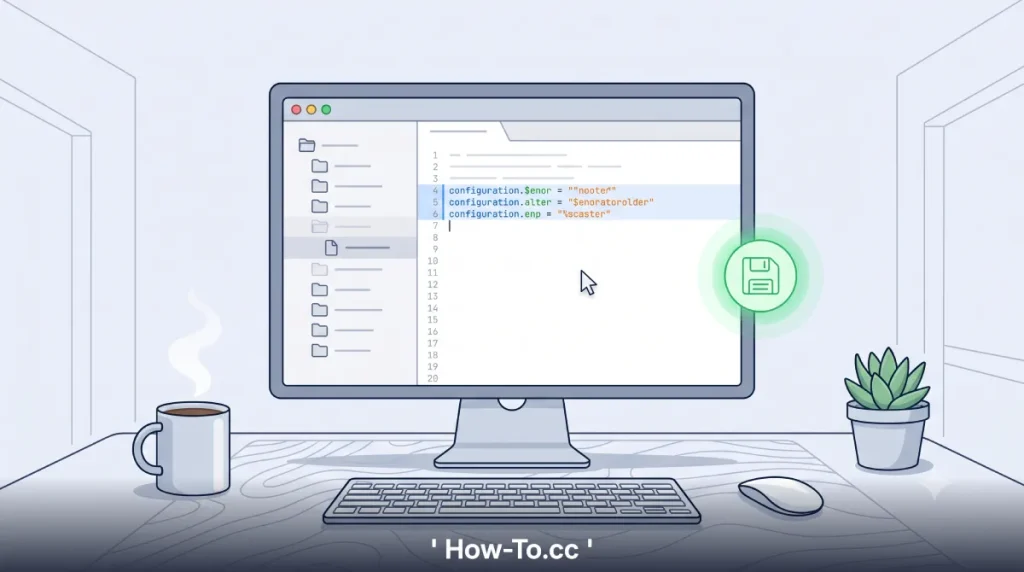
Installing the software package is only half the battle. Your terminal must be instructed to actually load these scripts every time you open a new window. This is accomplished by adding a “source” command to your personal shell configuration file.
The configuration file you need to edit depends heavily on your operating system and how your terminal session is initiated (login vs. non-login shells).
Editing on Linux (Ubuntu, Debian, CentOS)
On Linux systems, you typically want to edit your .bashrc file. This file lives hidden in your user’s home directory.
- Open the file using the Nano text editor:
nano ~/.bashrc - Scroll all the way to the very bottom of the file using your arrow keys.
- Carefully paste the following block of code:
# Enable programmable completion features
if ! shopt -oq posix; then
  if [ -f /usr/share/bash-completion/bash_completion ]; then
    . /usr/share/bash-completion/bash_completion
  elif [ -f /etc/bash_completion ]; then
    . /etc/bash_completion
  fi
fi
- Save your changes in Nano by pressing Ctrl + O, hitting Enter to confirm the file name, and then pressing Ctrl + X to exit back to the command line.
Editing on macOS (Homebrew Bash)
Because macOS handles terminal sessions slightly differently, you usually need to edit the .bash_profile file instead of the .bashrc file.
- Open the file in Nano:
nano ~/.bash_profile - If you installed the standard bash-completion package via Homebrew, paste this specific code block at the bottom of the document:
# Homebrew Bash Completion
if [ -f $(brew --prefix)/etc/bash_completion ]; then
  . $(brew --prefix)/etc/bash_completion
fi
- Save the file (Ctrl+O, Enter, Ctrl+X).
Step 4: Reload Your Terminal Environment
Configuration files like .bashrc and .bash_profile are only read by the system at the exact moment a new terminal session is launched. Since you just edited the file in your active window, the changes have not taken effect yet. Pressing Tab right now will still result in failure.
You have two choices to apply the changes. You can simply close the terminal application entirely and open a fresh window. Alternatively, you can force the current terminal window to reload the configuration file immediately by using the source command.
Type the following command (adjusting for the file you just edited):
source ~/.bashrc
or
source ~/.bash_profile
Now, type a common command like apt i or git check and press the Tab key. The system should immediately expand the command or show you a clean list of available options.
Handling Specific macOS Zsh Environments
As mentioned earlier, if your Mac is running macOS Catalina or newer, your default shell is Zsh, not Bash. If you ran echo $0 and discovered you are on Zsh, the Bash fixes above are completely useless to you. Zsh handles command line completion through an entirely different mechanism called zsh-completions.
If your Zsh tab completion is broken, you need to add specific activation commands to your .zshrc file.
- Open your configuration file:
nano ~/.zshrc - Paste the following two lines at the top of the file:
autoload -Uz compinit
compinit
- Save the file and reload your environment by typing source ~/.zshrc.
If you receive an insecure directory warning after running that command, it means your Zsh completion folders have the wrong file permissions. You can fix that security error by running chmod -R go-w /usr/local/share/zsh.
Troubleshooting Persistent Completion Errors
If you have installed the package, edited your configuration files, sourced the environment, and your tab completion is still broken, you are dealing with a localized system conflict. Here are the most common advanced culprits and how to eradicate them.
1. Broken Aliases Overriding Commands
Developers often create custom aliases to save time. For instance, you might alias the kubectl command to just k. However, if you do not explicitly tell the completion engine to map the completions from kubectl to your new k alias, tab completion for k will fail silently.
If you use heavy aliasing, check your .bashrc file. Ensure that for every complex alias you create, you also include the corresponding completion wrapper.
2. Incorrect File Permissions
The shell is highly security-conscious. If the completion scripts located in /etc/bash_completion.d/ have improper permissions, the shell will actively refuse to execute them to protect the system from malicious script injection.
You must ensure that these files are readable by your user account. You can reset the permissions for the entire completion directory back to safe defaults by running:
sudo chmod -R 755 /etc/bash_completion.d/
3. Missing Program-Specific Scripts
The core bash-completion package includes scripts for hundreds of common commands (like cd, ls, tar, and ssh). However, third-party developer tools like Docker, Git, Kubernetes, and AWS CLI manage their own completion scripts separately.
If basic system commands autocomplete perfectly, but a specific tool like docker refuses to autocomplete, the core system is fine. You are simply missing the Docker-specific script.
To fix this, you must consult the official documentation for that specific software. For example, to enable Git completion, you usually have to download the raw git-completion.bash file directly from the official GitHub repository and manually place it inside your ~/.bash_completion directory.
Creating Your Own Custom Bash Completion
Understanding how to fix the system is great, but knowing how to build upon it elevates you to an advanced user level. If you write your own custom bash scripts for server management, you can actually write custom completion rules for them.
Bash uses the complete command alongside the -W (wordlist) flag to define simple autocomplete rules.
Imagine you wrote a script called server_manager.sh, and it accepts three arguments: start, stop, and restart. You can force your terminal to autocomplete those specific words.
Open your .bashrc file and add this single line to the bottom:
complete -W “start stop restart” server_manager.sh
Save the file and run source ~/.bashrc. Now, type server_manager.sh st and hit Tab. The terminal will instantly know to suggest start and stop. Mastering this small feature drastically improves your efficiency when developing in-house command-line tools for your infrastructure.
FAQs
1. Why does my tab completion only show local files and directories?
This happens when your terminal is running basic Bash without the programmable bash-completion package loaded. The shell falls back to its default behavior, which is to only search the current working directory for file names that match the letters you typed.
2. Can I use Bash completion if I am connected to a server via SSH?
Yes. However, the completion scripts run locally on the server you are connected to, not on your physical laptop. If tab completion fails over an SSH session, you must install the bash-completion package and edit the .bashrc file directly on the remote server itself.
3. What is the difference between .bashrc and .bash_profile?
The .bash_profile file is executed only once when you log into a machine (like typing a password at a physical login screen or connecting via SSH). The .bashrc file is executed every time you open a new terminal window (a non-login shell). On Linux, most configurations go in .bashrc.
4. Will fixing Bash completion slow down my terminal startup time?
Loading thousands of completion scripts can introduce a very minor delay (milliseconds) when opening a new terminal window. However, on modern computers, this delay is completely unnoticeable, and the massive boost in typing efficiency far outweighs the tiny initialization cost.
Working in a terminal without autocomplete is like trying to navigate a new city without a map. It is slow, prone to errors, and deeply frustrating. By installing the proper packages and pointing your configuration files to the right directories, you bring intelligence and speed back to your command line.
If you run into any unique error messages while trying to reload your bash environment, drop the exact output in the comments below, and we will help you troubleshoot it!