Few things disrupt your day quite like pulling out your phone to record a video, only to be met with the dreaded “Storage Almost Full” notification. When your device reaches its maximum capacity, it does not just prevent you from taking new pictures or downloading applications. A full hard drive drastically slows down your operating system, causes background applications to crash, and prevents vital security updates from installing.
Many users immediately assume they need to purchase a brand-new device with a larger hard drive or pay for expensive monthly cloud subscriptions. Fortunately, you can easily free up storage space on iPhone by adjusting a few hidden settings and clearing out digital clutter that you never even knew existed. Apple provides built-in tools to identify exactly what is eating up your memory, allowing you to reclaim gigabytes of space in just a few minutes.
This comprehensive guide will walk you through the exact steps to analyze your hard drive, optimize your media libraries, clear hidden application caches, and finally tame that mysterious “System Data” category.
Quick Facts: Storage Optimization
| Parameter | Details |
| Time Required | 10 – 20 Minutes |
| Difficulty Level | Beginner |
| Tools Needed | An iPhone running iOS 15 or newer, Active Wi-Fi connection |
| Average Space Saved | 5 GB to 20 GB (depending on usage) |
Phase 1: Diagnose Your iPhone Storage
Before you start randomly deleting photos or removing applications, you must understand exactly how your storage is currently being utilized. iOS features a highly detailed diagnostic tool that breaks down your memory consumption category by category.
How to check your current storage breakdown:
- Open the Settings app on your home screen.
- Scroll down and tap on General.
- Select iPhone Storage.
It may take a few seconds for your device to calculate the data. Once loaded, you will see a color-coded bar graph at the very top of the screen. This visual representation shows you exactly which file types are taking up the most room.
Below the graph, iOS provides a list of installed applications arranged by size, from largest to smallest. This list is your roadmap. Pay close attention to the numbers on the right side of each application name. If a simple messaging application is taking up 15 GB of space, you immediately know where to focus your cleanup efforts.
Phase 2: Master the “Offload Unused Apps” Feature
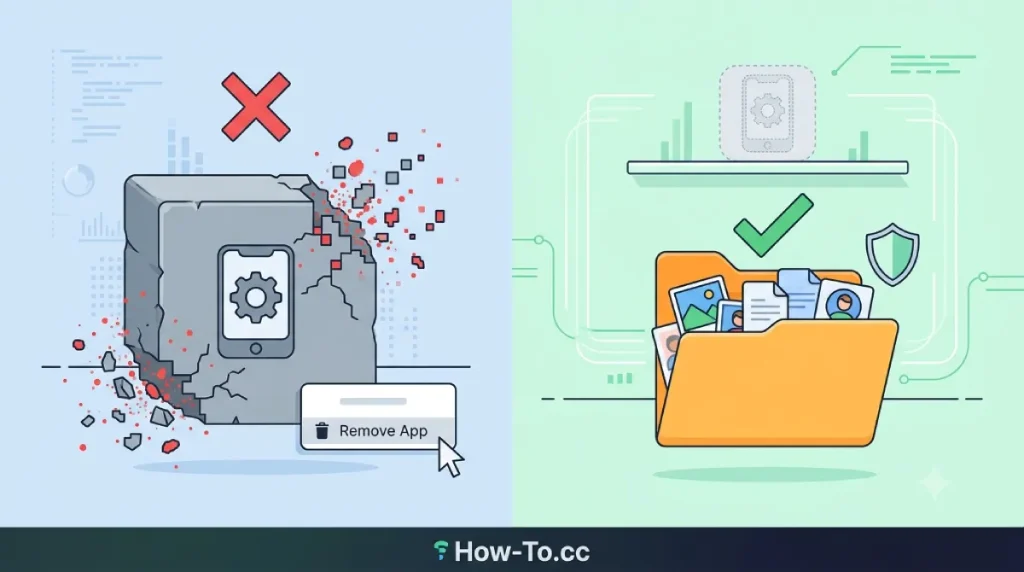
One of the most effective tools Apple introduced in recent years is the ability to “offload” applications. Many users hesitate to remove large games or travel applications because they do not want to lose their saved progress, login credentials, or personalized settings. Offloading solves this exact problem.
When you offload an application, the operating system deletes the heavy core application files but keeps all your personal data and documents safely stored on the device.
Offload vs. Delete: Understanding the Difference
| Action | What It Removes | What It Keeps | Best Use Case |
| Offload App | The core app program files. | All saved data, settings, and documents. | Heavy games you play rarely, airline apps used only during travel. |
| Delete App | Everything (App files + Data). | Nothing. | Apps you will absolutely never use again. |
How to manually offload a specific application:
- Go to Settings > General > iPhone Storage.
- Tap on an application that you rarely use but takes up significant space (e.g., GarageBand, iMovie, or heavy 3D games).
- Tap the blue Offload App button.
- Confirm your choice when prompted.
The application icon will remain on your home screen, but it will now have a small cloud icon next to its name. Whenever you need it again, simply tap the icon, and iOS will instantly redownload the application files while restoring your data perfectly.
How to enable Automatic Offloading:
If you prefer a hands-off approach, you can instruct iOS to automatically offload applications you have not opened in a while whenever you are running low on space.
- Open Settings and scroll down to App Store.
- Toggle the switch next to Offload Unused Apps so it turns green.
Phase 3: Optimizing Your Photo and Video Library
For the vast majority of smartphone users, the camera roll is the single largest consumer of hard drive space. Modern iPhones shoot incredibly high-resolution photographs and 4K videos, which can consume hundreds of megabytes per file.
Enable iCloud Photo Optimization
If you use iCloud to back up your camera roll, you can drastically reduce your local storage footprint by optimizing the files stored directly on your physical hardware.
- Open Settings and tap your Apple ID Name at the very top.
- Select iCloud, then tap Photos.
- Check the option labeled Optimize iPhone Storage.
When this setting is active, your iPhone keeps the full-resolution, heavy files safely in iCloud. It replaces the images on your physical device with smaller, device-sized versions. When you tap to view or edit a photo, the high-resolution version downloads from the cloud instantly. This single setting can transform a 50 GB photo library into a 5 GB library.
Erase Duplicate Photographs
With the introduction of iOS 16, Apple added a native tool to detect and merge duplicate photographs. We often take three or four photos of the exact same subject to ensure we capture the perfect moment, resulting in massive amounts of wasted space.
- Open the native Photos app.
- Tap the Albums tab at the bottom.
- Scroll all the way down to the Utilities section and tap Duplicates.
- You can review these individually or tap Select in the top right corner, choose Select All, and tap Merge.
- The system automatically keeps the highest quality version and moves the identical copies to the trash.
Empty the Recently Deleted Folder
When you delete a photograph or video, iOS does not immediately remove it from your hard drive. It moves the file to a temporary holding folder for 30 days, just in case you change your mind. If you are desperately trying to free up space right now, you must empty this folder manually.
- In the Photos app, go to the Albums tab.
- Scroll down to Utilities and tap Recently Deleted. (You may need Face ID or a passcode to unlock it).
- Tap Select in the top right.
- Tap Delete All in the bottom left corner and confirm.
Phase 4: Taming Message and Attachment Bloat
Text messages themselves take up almost zero space. However, the high-definition videos, funny GIFs, and massive PDF files you send and receive through iMessage accumulate rapidly. If you have kept text message threads going for years, you might have gigabytes of attachments hiding on your device.
Review and Delete Large Attachments
iOS provides a built-in tool specifically designed to hunt down the heaviest files hiding in your messages.
- Go to Settings > General > iPhone Storage.
- Scroll down the app list and tap on Messages.
- Tap on Review Large Attachments.
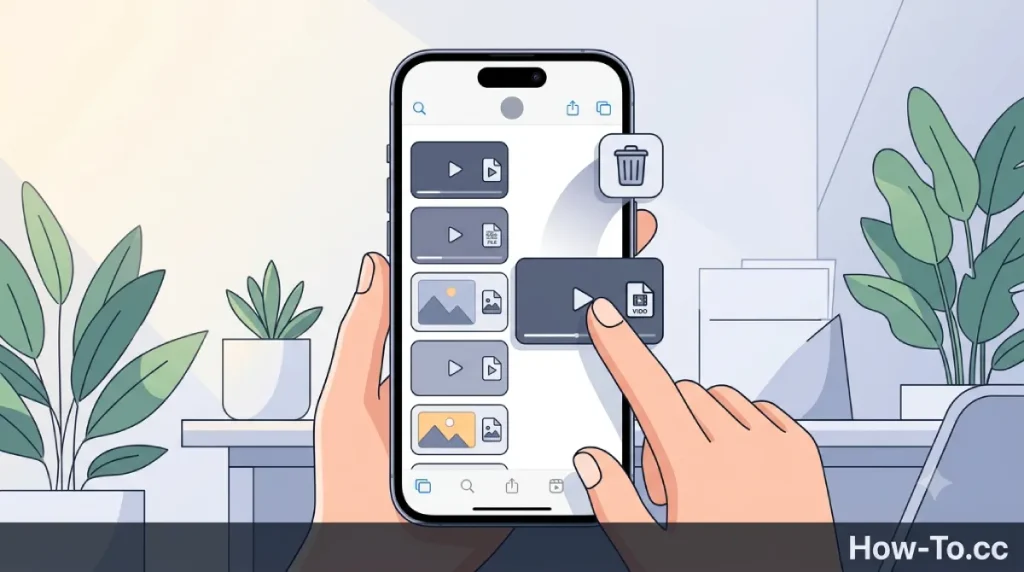
- You will see a list of videos and images sorted by size. Swipe left on any file you no longer need and tap Delete.
Automate Message Deletion
By default, your iPhone is set to keep your text messages forever. Changing this to a shorter duration will automatically purge old, forgotten threads.
- Go to Settings and scroll down to Messages.
- Scroll down to the Message History section and tap Keep Messages.
- Change the setting from Forever to either 1 Year or 30 Days.
- The system will prompt you to confirm the deletion of older messages.
Phase 5: Clearing Specific App Caches
As you browse the web, stream music, and scroll through social media, your applications download temporary files called caches. These files are designed to make websites and apps load faster the next time you open them. Over months of use, these temporary files can balloon to massive proportions.
Safari Browser Cache
Safari holds onto website data, cookies, and browsing history. Clearing this provides an immediate boost to your available memory.
- Open Settings and scroll down to Safari.
- Scroll down and tap Clear History and Website Data.
- Choose the timeframe (select All History for maximum space saving).
- Tap Clear History. (Note: This will log you out of websites on your browser).
WhatsApp Storage Management
If you use WhatsApp regularly, it is likely one of the biggest storage hogs on your phone due to automatic media downloading in group chats.
- Open WhatsApp and tap the Settings gear in the bottom right.
- Select Storage and Data, then tap Manage Storage.
- WhatsApp will display a visual bar graph of its own storage.
- Tap on Files larger than 5 MB or tap on specific group chats below.
- Select the videos and photos you no longer need and delete them.
To prevent this from happening in the future, go back to Storage and Data and turn off Media Auto-Download for Photos and Videos.
Streaming Apps (Spotify, Netflix, Podcasts)
Applications that allow offline playback are notorious for consuming storage.
- Apple Podcasts: Go to Settings > Podcasts and ensure Remove Played Downloads is toggled on.
- Spotify & Apple Music: Open the respective applications and remove downloaded albums or playlists you no longer listen to offline. In Spotify, you can also go to Settings > Storage and tap Clear Cache without losing your downloaded songs.
Phase 6: Confronting the “System Data” Category
When you look at your iPhone Storage graph, you might notice a massive grey block labeled “System Data” (formerly called “Other”). This category is notoriously frustrating because Apple does not give you a direct button to delete it.
System Data consists of system logs, Siri voice assets, keychain data, and temporary cache files generated by the operating system. If this category grows larger than 10 GB to 15 GB, it is holding onto corrupted or unnecessary files.
While there is no magic “delete” button for System Data, you can aggressively shrink it using these three methods:
Method 1: The Force Restart Trick
A simple reboot clears temporary RAM and forces the operating system to dump unnecessary cache files it was holding onto during active sessions.
- For iPhones with Face ID: Press and quickly release the Volume Up button. Press and quickly release the Volume Down button. Finally, press and hold the Side Power button until the screen goes black and the Apple logo appears.
Method 2: Update Your iOS
System Data often balloons because the phone has downloaded a heavy iOS installation file in the background but has not yet installed it.
- Go to Settings > General > Software Update. If an update is waiting, install it immediately. The system will delete the installation package once the update is complete.
Method 3: The Backup and Restore (The Nuclear Option)
If your System Data is taking up an absurd amount of space (e.g., 30+ GB) and nothing else works, you must wipe the phone and restore it. When you back up an iPhone, iOS does not back up the corrupted cache files. When you restore the phone, it only brings back your actual data, leaving the bloated System Data behind.
- Connect your iPhone to a computer and back it up using Finder (Mac) or iTunes (Windows). You can also use iCloud if you have enough space.
- Once backed up, go to Settings > General > Transfer or Reset iPhone.
- Tap Erase All Content and Settings.
- Set up the phone as new, and select Restore from Backup during the initial setup screen.
Maintaining a Clean Device Long-Term
Freeing up space is an excellent start, but keeping your device optimized requires a few habitual changes. Make it a practice to utilize cloud storage for heavy video files rather than keeping them locally. Review your installed applications every few months and delete the ones that no longer serve a purpose.
By utilizing features like automatic offloading, message auto-deletion, and iCloud optimization, you ensure your device always has the breathing room it needs to operate smoothly. Your smartphone will run faster, record longer videos, and update securely without the constant anxiety of a full hard drive.
If you found these optimization techniques helpful, share this guide with friends who are constantly complaining about their storage, or leave a comment below if you have any questions about managing your specific apps!
Frequently Asked Questions (FAQs)
1. Does offloading an app delete my saved passwords or game progress?
No. Offloading an application exclusively removes the core program files created by the developer. All of your personal documents, saved game progress, and login credentials remain securely saved on your device. When you redownload the application, everything returns exactly as you left it.
2. Why does my iPhone storage fill up even when I am not downloading anything?
This is typically caused by background caching. As you scroll through social media apps (like Instagram or TikTok), stream music, or browse the web, your phone temporarily saves images and data to make the apps load faster. Over time, these hidden cache files can consume massive amounts of storage space.
3. Is it safe to delete the “System Data” category?
You cannot directly delete System Data yourself, as it contains essential files required for iOS to function. However, if the category becomes unusually large, it means temporary files are stuck. Performing a force restart or restoring the phone from a backup safely clears out the unnecessary bloated files within this category.
4. What happens if I turn off iCloud Photo Optimization?
If you disable “Optimize iPhone Storage,” your phone will attempt to download the original, full-resolution versions of every photograph and video in your iCloud library. If your physical device does not have enough capacity to hold the entire library, the download will fail, and you will receive immediate “Storage Full” warnings.